Setting up a private Git Server
Setting Up a private Git Server
I’m trying to keep up as fast as possible with all the knowledge I feel I’ve missing out. I already use GitHub and GitHub pages to host this blog and other personal repos, however I would like to explore how would it be to have my own personal Git Server on my Proxmox VE.
Prepare VM and Install GitLab
- I adapted my Debian 13 cloud-init image to 4 GB RAM and 30 GB disk space. Everything else (users, SSH-keys, etc) stayed the same.
- Power on the machine, install updates and all necessary packages
1
2
3
sudo apt update && sudo apt upgrade -y
sudo apt install -y tzdata perl
sudo apt install -y postfix
- Download GitLab installation script and start installation providing either the hostname or the IP of the server where Git should run.
1
2
curl https://packages.gitlab.com/install/repositories/gitlab/gitlab-ce/script.deb.sh | sudo bash
sudo EXTERNAL_URL="http://<server-fqdn or server-ip>" apt install gitlab-ce
Installation might take up to 10 minutes.
Setting Up GitLab Instance and Test
- On a browser, call
http://<server-fqdn or server-ip>, you’ll be prompted for login on GitLab’s Web UI. - Don’t forget to change root’s initial password using GitLab’s Instructions
- Create a Group, create a Project and assign it to the group.
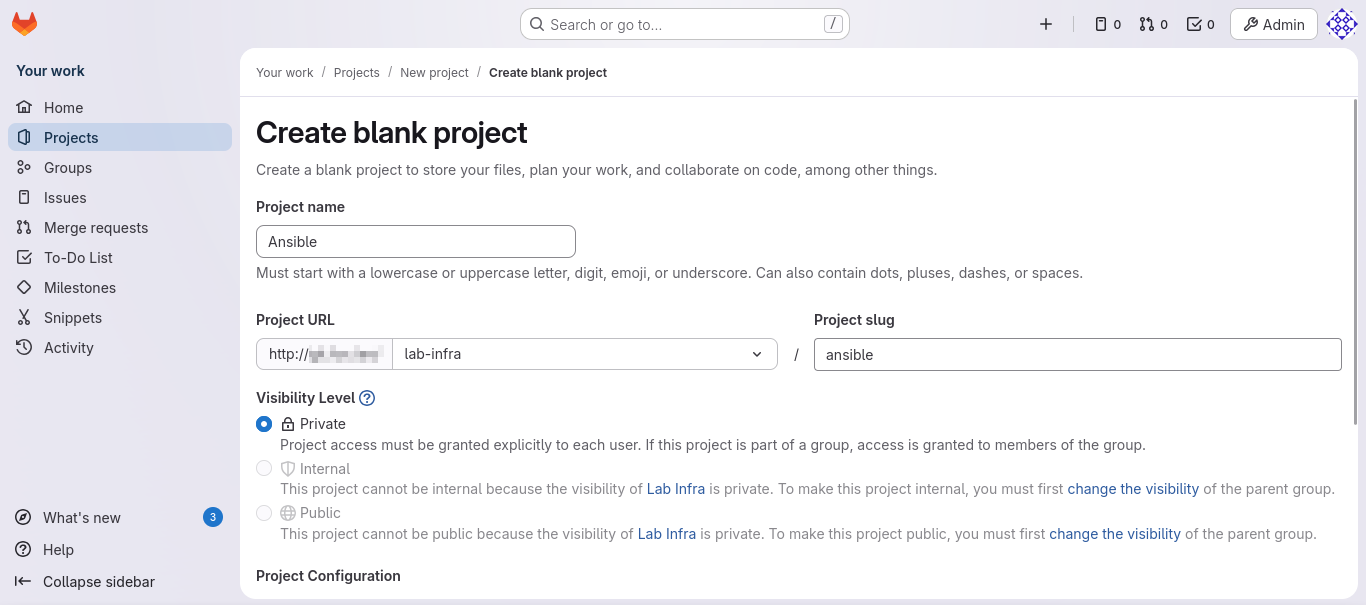
- Create a couple of users, add them to the group with the Developer role and set SSH keys so that key can commit and push their content to the project folder.
Cloning repo and committing changes
- From a remote machine, try cloning the repo you just set up:
git clone git@<server-IP>:<group-name>/<project-name>.git. It should clone the structure of the project you just set up, including the automatically generatedREADME.md. - Also from the remote machine, create a branch, add some changes and try committing / pushing them:
1
2
3
4
5
6
cd gitlab/<project-name>
# add folders, files, etc
git checkout -b feature-test
git add .
git commit -m "First commit"
git push origin feature-test
- Once logged in into GitLab Web UI, you will be prompted about a merge request. Change to your root user to approve the merge

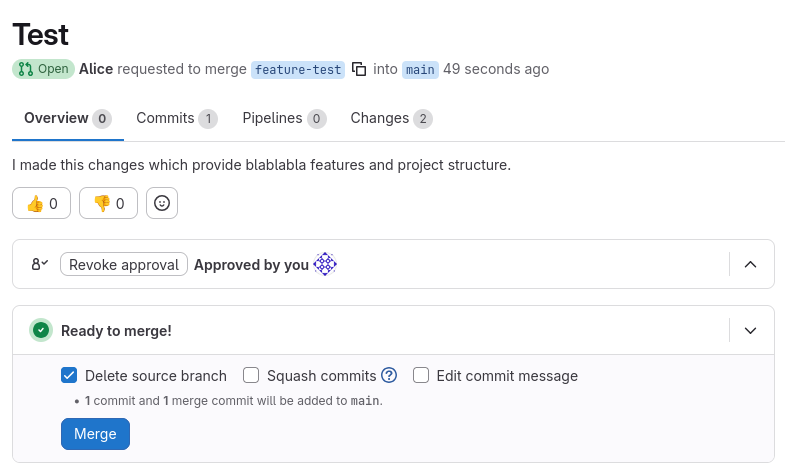
Our test user has a Developer Role, which prevents them from writing changes directly to the main branch. If you wish to skip this workflow entirely, just change the user role to Maintainer, or change the Developer role to allow those users to push changes to main.
Setting Up SSL and NGINX redirect
- Issue SSL certificates
- Create folder structure on GitLab server and save certificates there
1
2
sudo mkdir -p /etc/gitlab/ssl
sudo chmod 755 /etc/gitlab/ssl
- Adjust contents of
/etc/gitlab/gitlab.rband reconfigure instance to apply changes withsudo gitlab-ctl reconfigure
1
2
3
4
5
6
7
8
9
10
external_url 'https://<server-fqdn>'
[...]
letsencrypt['enable'] = false
[...]
nginx['redirect_http_to_https'] = true
nginx['ssl_certificate'] = "/etc/gitlab/ssl/<server-fqdn>.crt"
nginx['ssl_certificate_key'] = "/etc/gitlab/ssl/<server-fqdn>.key"
nginx['ssl_protocols'] = "TLSv1.2 TLSv1.3"
nginx['listen_port'] = 443
nginx['listen_https'] = true
This post is licensed under CC BY 4.0 by the author.